Shop-floor kiosk
Scan, one button, no more paper
Job cards exist because somebody has to record what was done. The kiosk removes that job: the data is entered by the person who did the work, the moment they finished it — and nobody re-types it afterwards.
Walk through it yourself
The whole kiosk, in your browser
Below is a working simulation of the five steps an operator goes through on the floor. It takes less time than reading this sentence.
Kiosk · workstation CNC-02
Hold your badge to the scanner
No login. No password. No keyboard.
John Smith · operator
ORDER MO-2481 · STEP 03
Rough milling
Workstation CNC-02 · to produce 10 pcs
Task started
The kiosk is free — the next person can scan
You go and work. The kiosk remembers you have an open task. When you finish, you scan your badge again.
Order MO-2481 · step 03 · batch of 10 pcs
How did it go?
Enter the scrap count only
10 − 2 = 8 pcs good
Task completed
Job progress updated the same second. Nobody re-types a job card into the system.
Simulation · real kiosk screens below
The real screens
This is the kiosk on the floor
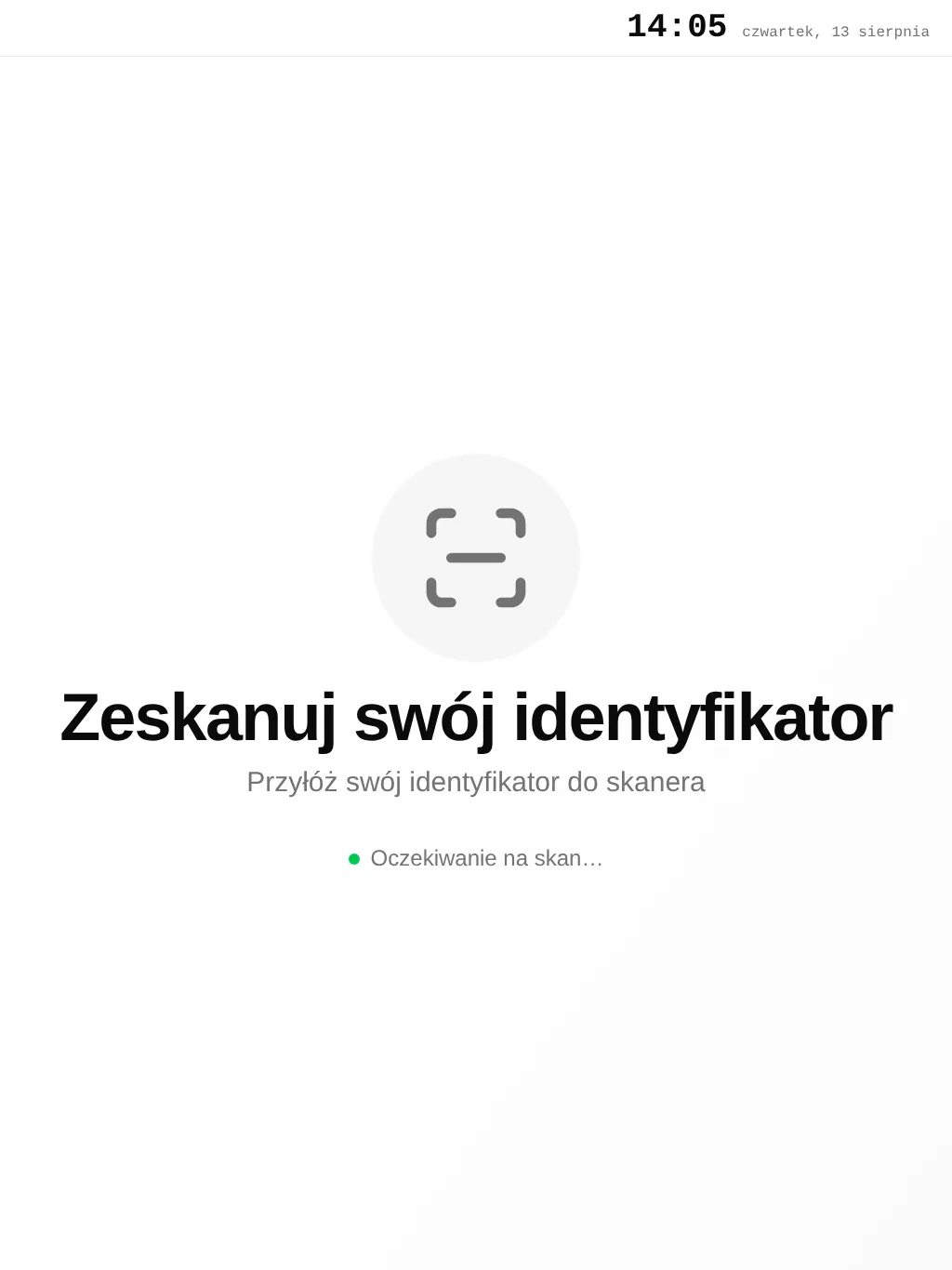
- 01The kiosk waits for a scan. There is nothing to click.
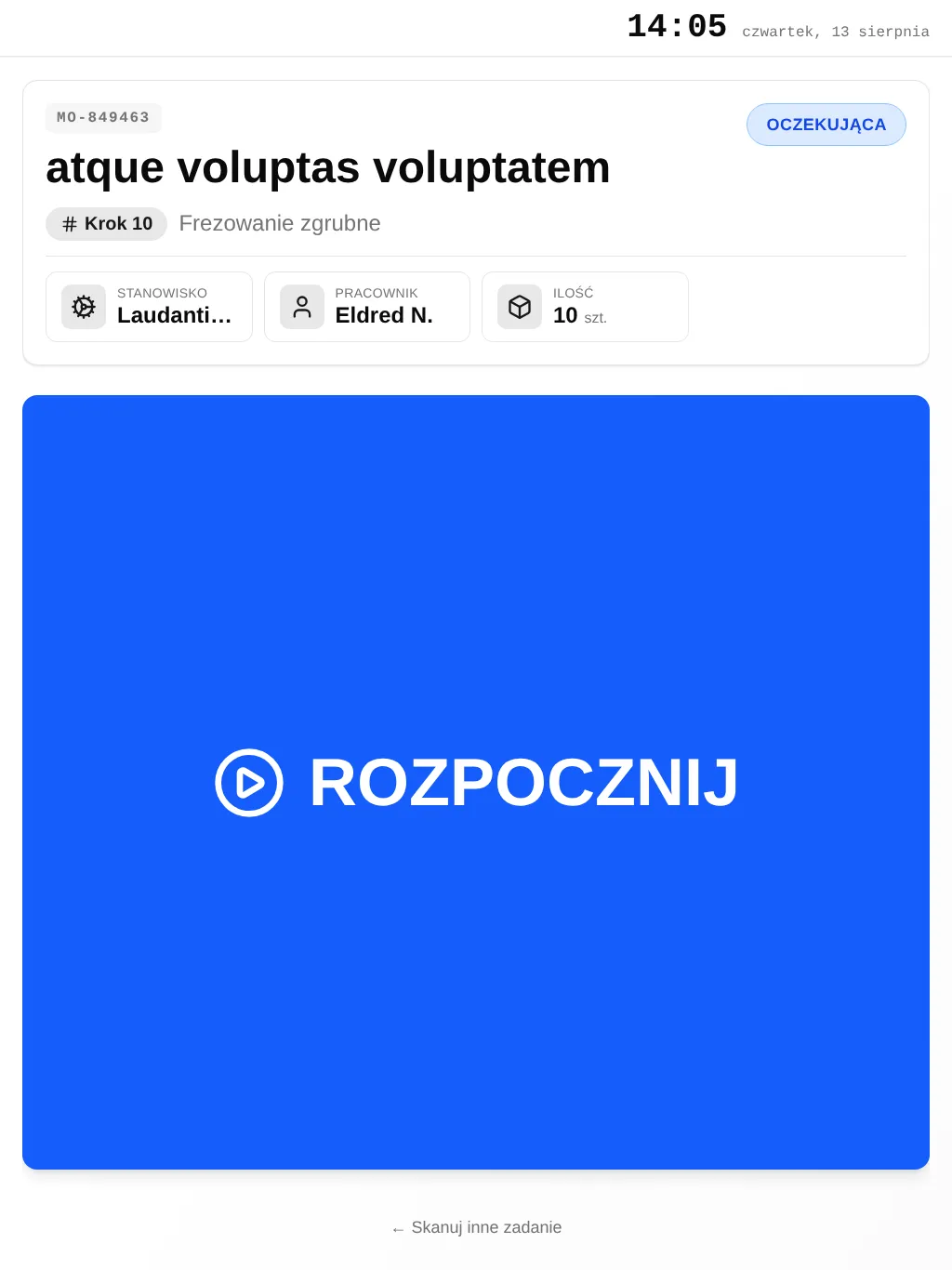
- 01Order number, step, workstation and quantity to produce.
- 02One button. Nothing to get wrong.
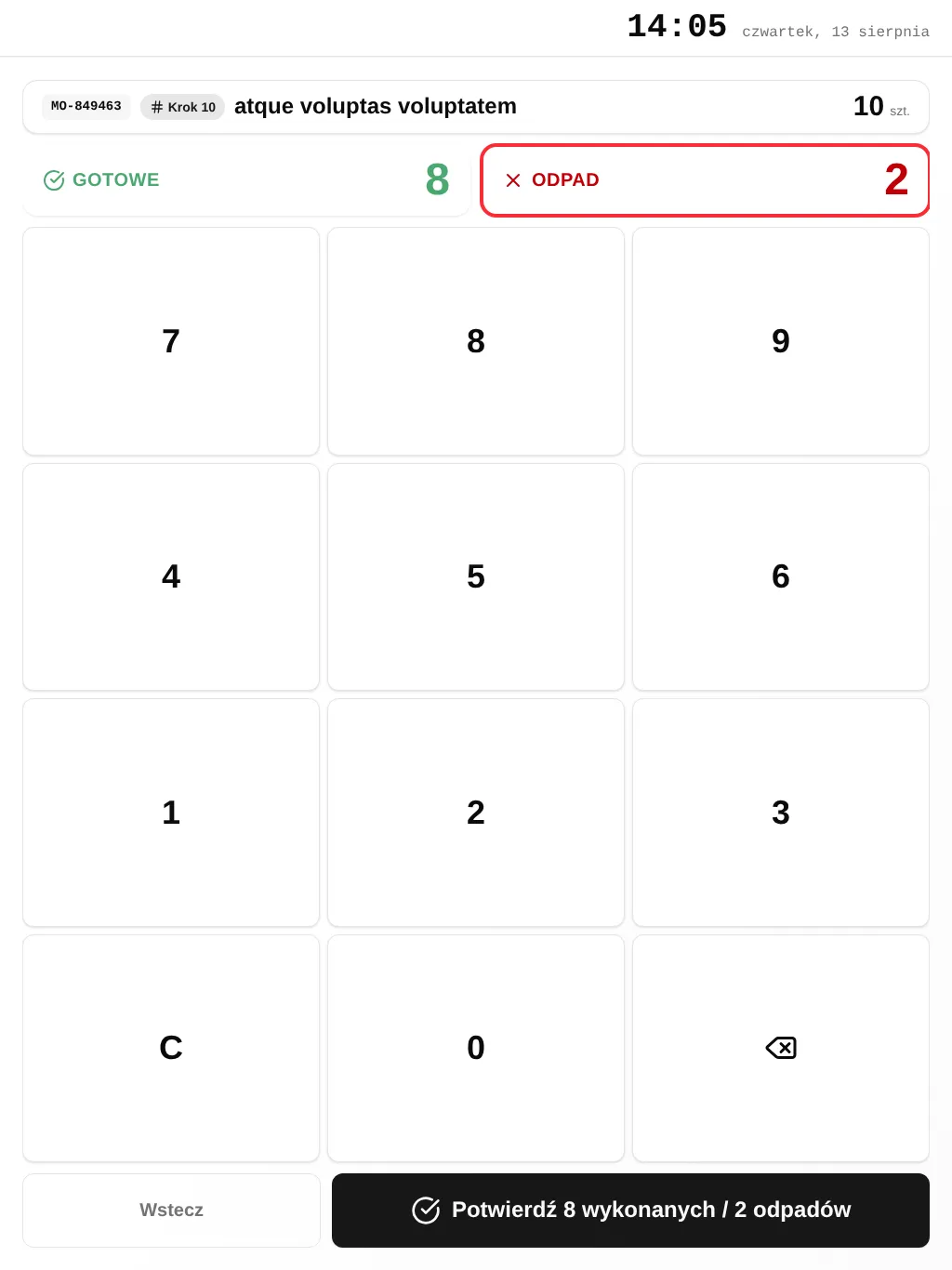
- 01You enter the scrap count. The kiosk works out the rest.
Screenshot missing
kiosk-blocked.png
Generate it with the tests in the rozdzielacz repo, then run bun run shots:sync.
- 01Not an error. The kiosk enforces the order of operations.
The badge
One card instead of a daily printout
The schedule used to be printed every day. Now the worker’s badge is printed once — the rest happens at the kiosk.
- It is personal. Work is recorded against whoever scanned. That is why it is not lent to a colleague.
- It works with gloves on. The scanner needs neither a fingertip nor a touchscreen.
- Lost ones are replaced at the office. Without blocking anyone’s work.
Five rules
This is all anyone needs to remember
- 01You scan twice: at the start and at the end of a task.
- 02The kiosk knows what you are meant to do — it always shows your current task.
- 03All good is one tap. Scrap? Enter the count only, the rest is calculated.
- 04A yellow screen means the previous step is still running. Come back and scan later.
- 05A red screen is a failed scan. Try again, and if it keeps happening, report it at the office.
Training an operator takes as long as the first scan.
What the shop gets
Four things nobody has to do any more
Walking the floor to ask
The start and end of every operation are visible in the office without a phone call or a walk.
Re-typing job cards
Quantities and scrap enter the system at source — from the person who did the work.
Policing the sequence
The kiosk will not let a step start until the previous one is finished.
Reporting consumption on paper
Operators raise material requests from the kiosk without leaving the workstation.
Questions
The questions that come up anyway
01
Does the operator need to know how to use a computer?
No. The kiosk is a tablet with a scanner standing on the floor. The operator holds up a badge with a code and presses one large button. There is no login, password or keyboard. The badge works with work gloves on.
02
What if some pieces went to scrap?
The operator enters only the scrap count. The number of good pieces is calculated automatically: for a batch of 10 with 2 scrapped, the kiosk shows 8 produced for confirmation.
03
Does the kiosk enforce the order of operations?
Yes. The kiosk will not let a step start until the previous one has been completed. It shows a yellow screen telling you which step is still running.
Demo
We will put a kiosk on your floor
A Basic station — tablet, scanner and adapter — is 1 600 zł net, each additional one 5% cheaper. But first see in the demo whether your operators take to it. They usually do, after the first scan.